
Organizations/Enterprises
Customer User Management & Access Control
This document breaks down the database models and how access control works for users on the customer side of the marketplace. The system is designed to handle individual users, collaborative teams (which we call "Organizations"), and large enterprise clients.
Core Data Models & Relationships
The system is built around three main models: User, Team, and Enterprise. The relationships between them set the rules for who can access what across CaterCow. For more on group ordering and polls, see Group Orders.
User Model (users table)
The User model is the main one for any individual who uses the platform. It stores key info like email, login details, and name. Everyone who uses the platform needs a record in this table, no matter their role.
Key Columns:
id: Unique identifier for the user.email: The user's primary email address, used for logging in and for us to contact them.first_name,last_name: The user's name.
Team Model (teams table)
The Team model represents a group of users, which we call an "Organization" externally. Teams are the main way to handle group ordering and shared resources. Every user has to be on at least one team.
Key Columns:
id: Unique identifier for the team.name: The name of the team or organization.owner_id: A foreign key to theuserstable, showing who the main owner of the team is.access_code: A public (but hard-to-guess) link that lets users join the team.enterprise_id: An optional foreign key that links the team to a larger enterprise account.invoiceable: A flag that shows if the team can be invoiced directly.
Key Relationships:
The Team model is central to the app and connects directly to many key resources:
has_many :memberships: Links to its users and their assigned roles.has_many :members: The actualUserrecords that make up the team.has_many :orders: All orders placed by the team.has_many :invoices: All invoices sent to the team.has_many :credit_cards: Shared payment methods for the team.has_many :order_polls: Shared order polls created by team members.has_many :contacts, class_name: :TeamContact: Designated points of contact for the team. Used for backup contacts if the primary point of contact cannot be reached, and for invoices.
Enterprise Model (enterprises table)
The Enterprise model represents large corporate clients that might have several teams under them. Its main purpose is to apply the same billing rules and handle invoicing for the whole company. For a team to be invoiced, the invoiceable flag must be turned on for both the Team and its Enterprise.
Enterprise-Level Configurations:
Beyond just grouping teams, the Enterprise model provides a powerful set of tools for managing corporate accounts:
- Billing & Invoicing:
- Allow the use of Purchase Orders (POs), with specific formatting rules and required document attachments.
- Enable and require Cost Centers, with custom labels that match the client's own accounting.
- Financial Controls:
- Manage tax-exempt status for the whole enterprise.
- Set custom platform fee percentages.
- User & Access Management:
- Automatically link new users with the enterprise based on their company email domain.
- Integrate with Okta to handle user logins.
Resource Ownership and Scoping
On the customer side, User and Team models are the main owners of resources. This means almost every major resource—like Orders, Invoices, and Credit Cards—is linked to either a user or a team.
This ownership setup is key to how we control and show data to users. What a user can access depends on their role on their teams. For example, someone who is on two different teams can see data in a few different ways:
- My Orders: A view of all orders they personally placed, no matter which team it was for.
- Team 1 Orders: A view of all orders for the first team. Whether they can see orders from other people depends on their role in that team.
- Team 2 Orders: A similar view, but just for the second team.
Access and Membership Model
Access to teams and their resources is managed through the Membership model.
How to Join a Team
A user can join a team in two main ways:
- Public Link: By default, teams have a public (but hard-to-guess)
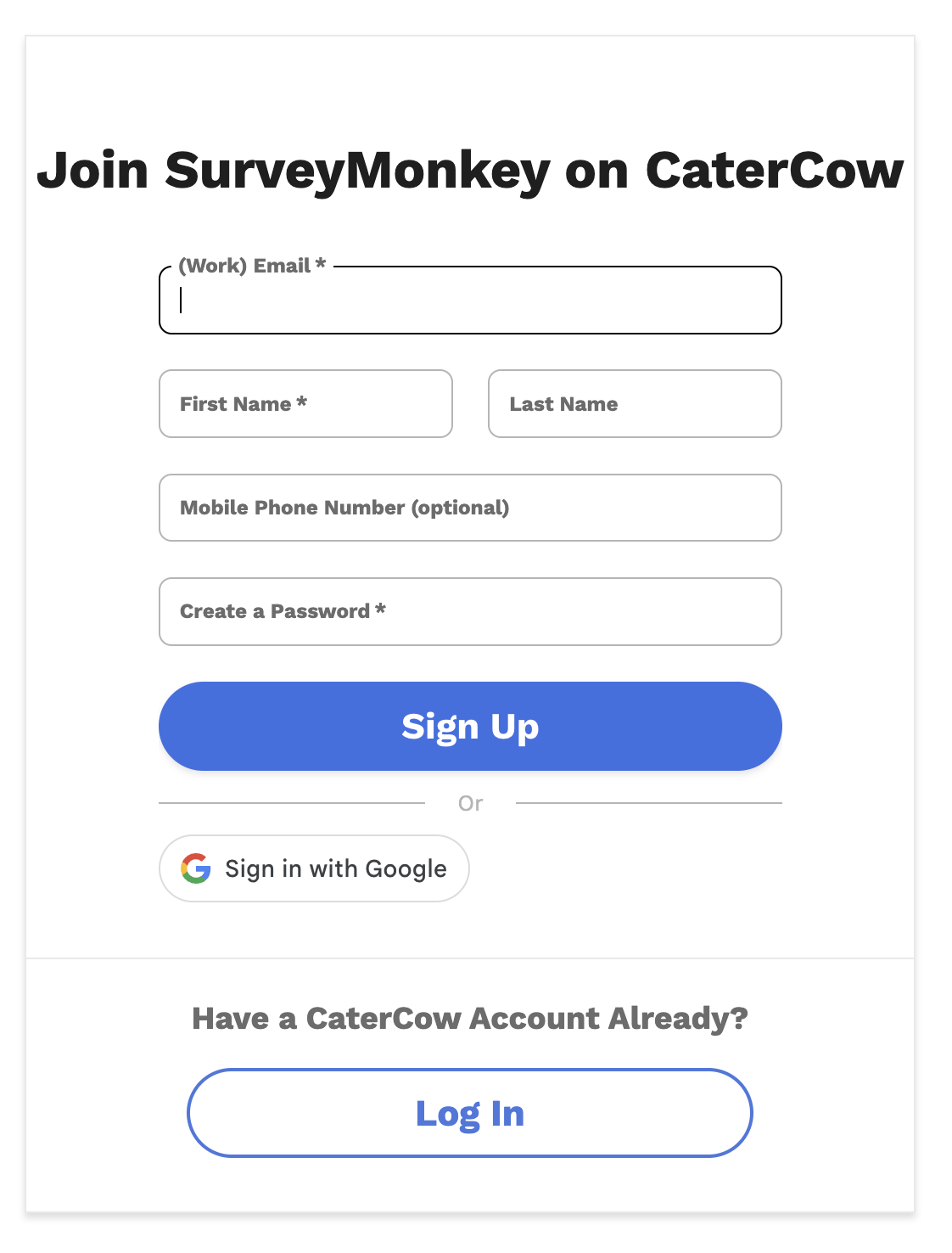
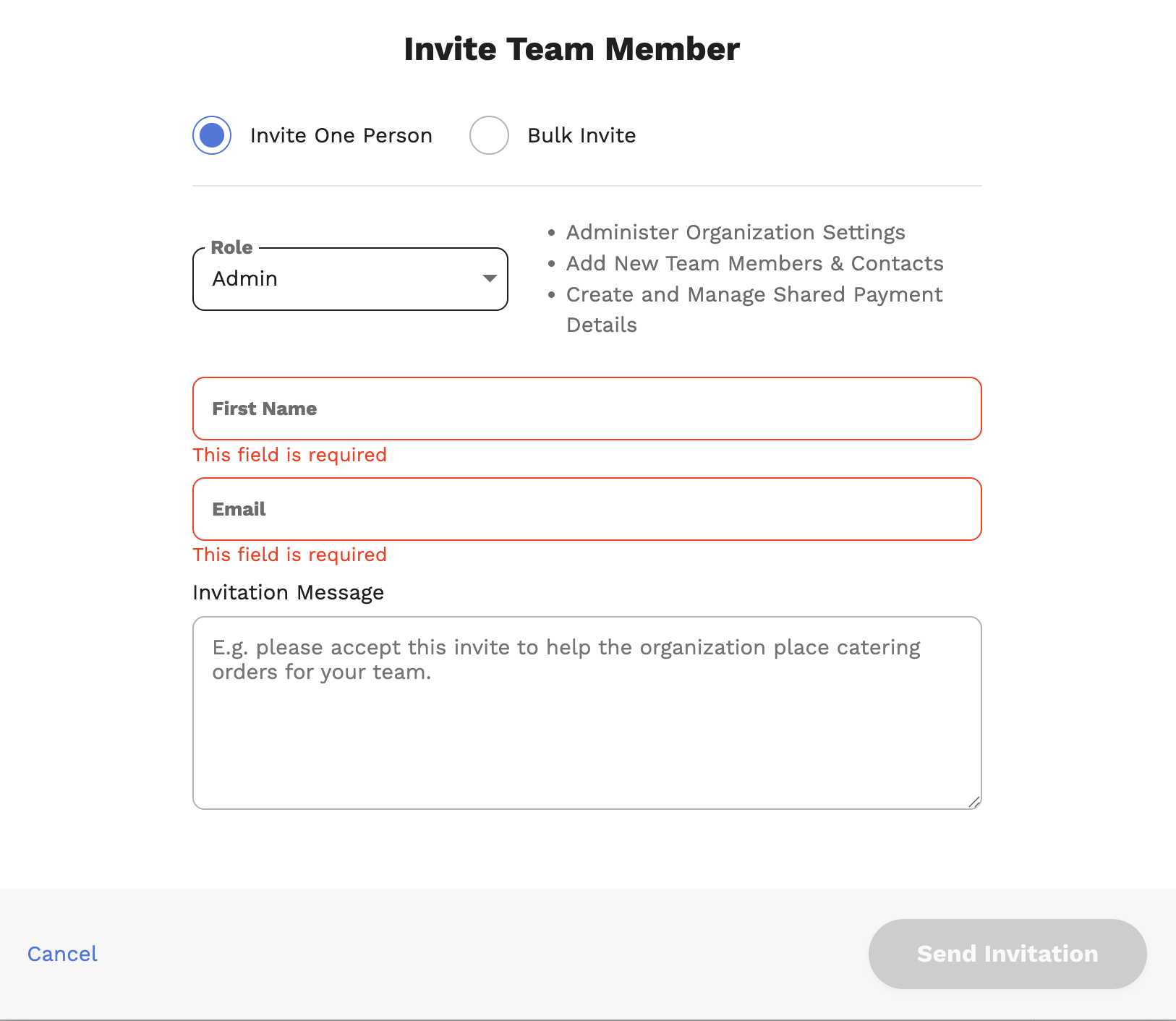
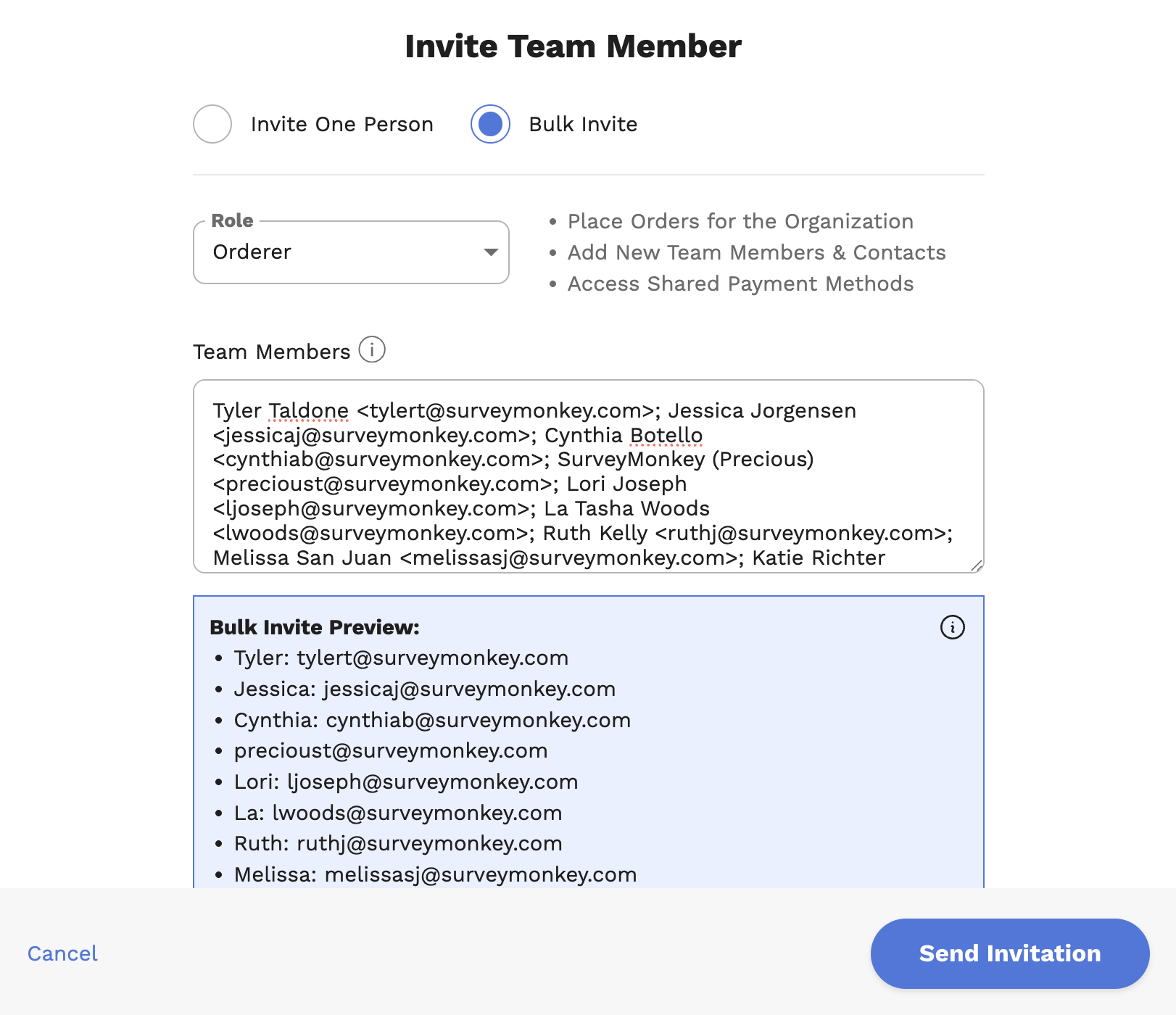
access_code. When a user clicks a team's join link with this code, they're automatically added to the team, usually with a default role. This is the usual way to get users set up for group orders. For more security-conscious organizations, this feature can easily be toggled off. - Email Invitation: A team member with the right permissions (like an admin) can invite a new user by email. This creates a new membership record with the invitee's email and a unique, secure
invitation_token. The user gets an email with a special link to accept the invite, which connects their user account to the team.
The Membership Model
This model connects users and teams. It's where we define a user's role and status on a specific team.
Key Columns:
id: The unique identifier for the membership record.user_id: A foreign key to theuserstable.team_id: A foreign key to theteamstable.role: An enum that defines the user's permissions.invitation_token: A unique token used for email-based invitations.
Roles and Permissions
What a user can do on a team is determined by their assigned role in the Membership model.
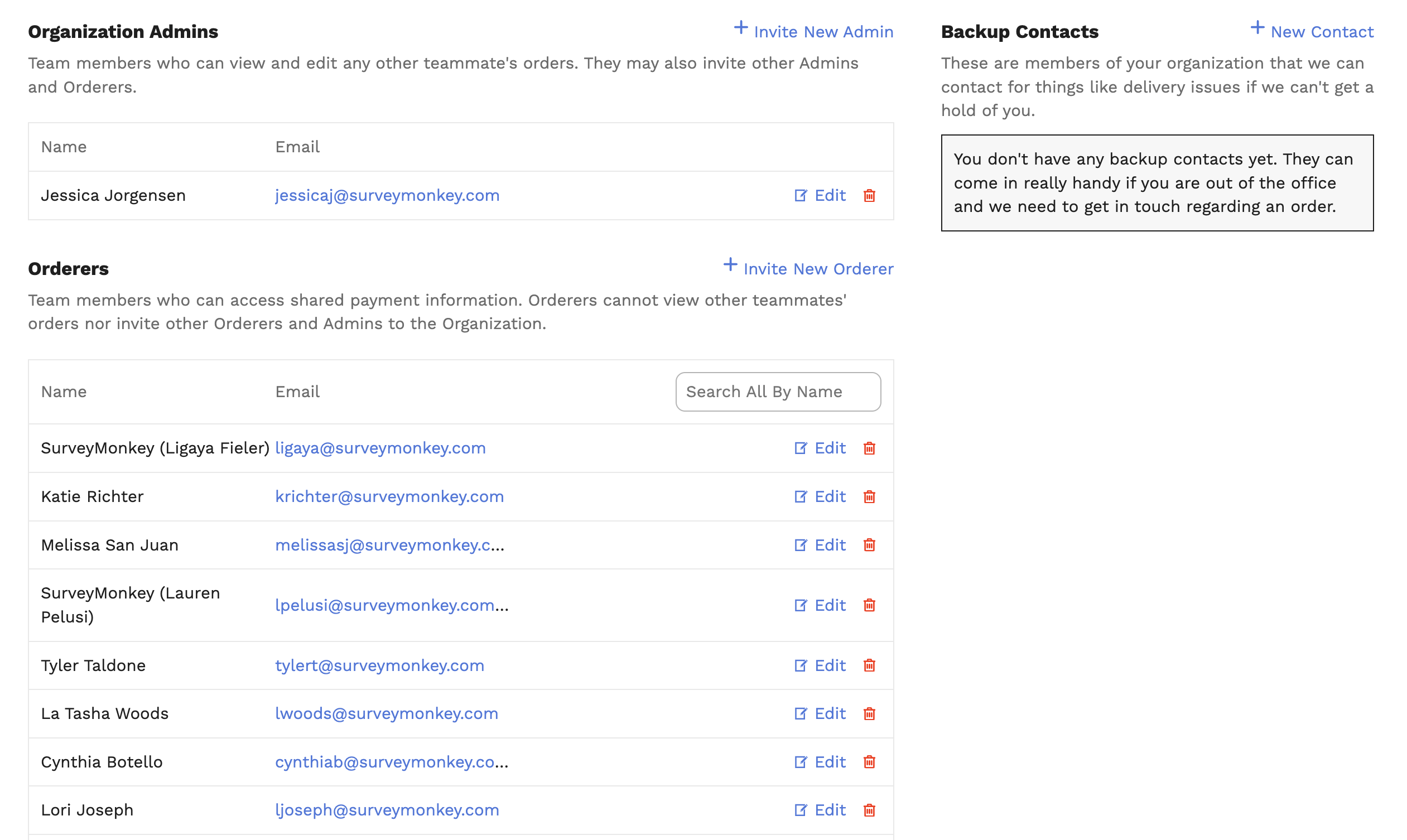
Organization Admins (admin)
Admins have full control over a team. They can see and edit any teammate's orders. They can also invite other Admins and Orderers.
Orderers (orderer)
These members can use shared payment methods to place orders. Unlike Admins, an Orderer can only see the orders they've placed themselves. They can't see other teammates' orders or invite new Admins and Orderers.
Staff (staff)
Staff members can join in on any of their organization's shared group orders (like a weekly company lunch) by responding to group order polls.
Guests (guest)
Guests have mostly identical permissions as staff but are bucketed as somewhat external for the purposes of organizing members. An example might be an employee from another city visiting the office for the week.